
Microsoft OneDrive
Microsoft CorporationProductivity
4.6114.89K Reviews
- Version
- Varies With Device
- Installs
- 5.00B
- Age Rating
- Everyone
Screenshots



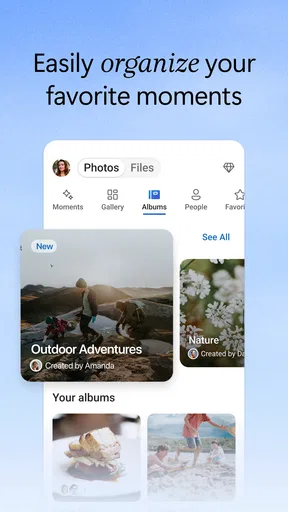
Our Review of Microsoft OneDrive
 Analysis by Appyee
When I judge a cloud-storage app, I look beyond whether it can hold files. I want to know if I can find what I need without straining through a busy screen, keep important material available across devices, and share it without creating confusion for someone else. Microsoft OneDrive does many of those everyday jobs well, especially if you already work with Microsoft documents, though a few practical trade-offs are worth considering before you move your whole digital life into it.
OneDrive is a free productivity app from Microsoft Corporation. It has been available since August 28, 2012, and its broad reach is reflected in more than five billion installs, around 7.1 million ratings, and a 4.6 average. It is rated for Everyone. The app is free to download, while optional in-app purchases range from $0.99 to $129.99 per item, so it is sensible to check the current purchase details and your storage needs before committing to a paid option.
Finding your way around and getting started
Hey there! So, I recently took a deep dive into Microsoft OneDrive, and let me tell you, it's been quite the journey. If you’re on the lookout for a cloud storage solution that’s both robust and user-friendly, stick around as I share my thoughts on this app. Whether you’re an Android or iOS user, I've got you covered.
First things first, let’s talk about installation and setup. You can grab Microsoft OneDrive from both the Google Play Store and the Apple App Store. The download and installation process was smooth sailing for me. Once installed, signing in is a breeze, especially if you're already part of the Microsoft ecosystem. You just use your Microsoft account, and you’re good to go.
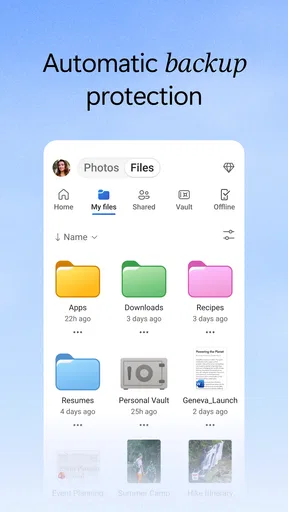
Once logged in, the app welcomes you with a clean, intuitive interface. It’s got that minimalist vibe that I really appreciate. You’re immediately greeted with your files neatly organized and easy to access. No fuss, no muss.
Browsing, scanning, and sharing in daily use
OneDrive offers a solid suite of features that cater to both personal and professional needs. For starters, you’ve got the standard file upload and download functionalities, which are super straightforward. If you’re like me and love snapping pics on your phone, you’ll be delighted with the automatic photo upload feature. It seamlessly backs up your photos without you lifting a finger.
For a practical example, I can imagine taking pictures of a receipt, a school handout, and a page of handwritten notes during a busy day. Automatic photo upload can help preserve the pictures, but it is not the same as having a tidy archive: I still need a naming and folder habit if I want to find one particular document later. I’d sort important scans into a clearly named folder soon after capturing them, rather than expecting a large camera roll to act like a filing cabinet.
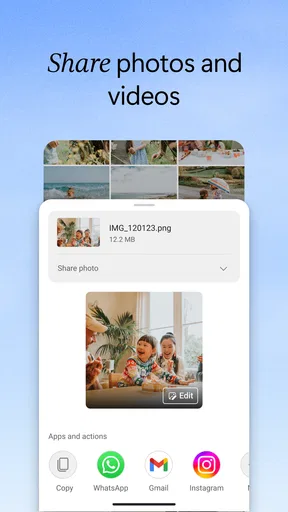
Then there's the file sharing aspect. Sharing files is as easy as pie. You can share links to files or folders with just a couple of taps. Plus, you can set permissions, so you’re always in control of what others can see or do with your files.
That permission step matters more than the quick share button suggests. Before sending a folder link, I’d check whether the recipient needs access to one file or everything inside the folder, and whether they should be able to make changes. For a group project, sharing a single working document can be clearer than giving broad folder access. It also makes it easier to avoid the awkward follow-up of asking someone to ignore unrelated personal files.
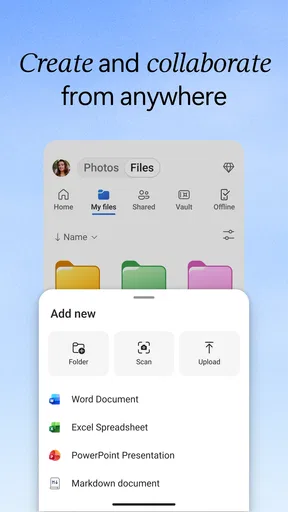
One feature I find particularly handy is the built-in scanner. Yup, you read that right! You can scan documents directly from the app, and it does a pretty decent job of it. It’s a lifesaver when you need to digitize documents on the fly.
Working across devices and Microsoft documents
Performance-wise, OneDrive is solid. The app runs smoothly, with minimal lags or crashes. File uploads and downloads are quick, which is a huge plus. I've noticed that even when I'm on a slower network, the app handles uploads gracefully without hanging or timing out.
Integration is another area where OneDrive shines. If you're using Microsoft Office apps like Word, Excel, or PowerPoint, you’ll find that OneDrive integrates seamlessly with them. You can edit your documents directly within the app and save them back to the cloud without breaking a sweat. It’s pretty nifty, especially if you're working on the go.
The clearest advantage is for someone who regularly switches between a phone and a computer and edits Microsoft files along the way. A student can start an assignment away from home, then continue working on the same material later; a small team can pass around a shared draft without sending a fresh attachment each time. Those workflows make OneDrive feel less like a spare drawer and more like a useful bridge between devices.
There is a trade-off, though. If you mainly want a simple place to store personal pictures and rarely touch Office documents, the Microsoft integration may not be especially valuable to you. Other cloud drives can be a better fit if your household or workplace already uses another ecosystem and you want everything to stay together there. I would choose based on the apps and people I need to work with, not on the assumption that one storage service is automatically best for everyone.
Readable controls, different abilities, and real-world access
The uncluttered first screen is a good starting point for people who prefer a clear route to their files rather than a crowded dashboard. In my experience, straightforward upload, browsing, and sharing tasks are easier to approach when the basic choices are visible and familiar. Still, a clean layout does not guarantee that every task will be equally comfortable for every person; the amount of effort depends on the device, display settings, and the user’s needs.
On a small phone screen, reviewing a long filename or checking which folder a file belongs to can take more care than doing the same task on a larger display. I’d use descriptive names that put the important words first, such as “Biology lab notes” rather than a vague label, so the file is easier to recognize in a list. A consistent folder structure also reduces repeated searching, which can be helpful if navigating menus is tiring or if you are using the app in short bursts.
Motor comfort is another real consideration. A quick tap is convenient, but accurately selecting a small target or changing a sharing choice while walking, carrying something, or using a phone one-handed is not always comfortable. I’d wait until I can hold the device steadily before changing permissions or sharing a sensitive file. The scanner is useful in a pinch, but getting a readable page still depends on positioning the phone and keeping it steady; someone who finds that movement difficult may prefer to capture the document another way and upload it later.
Cloud access helps when the situation changes: a file saved earlier can be useful on another device, while a phone can be a handy way to retrieve a document away from a desk. But it is not wise to treat access as guaranteed in every place or moment. Before travelling or entering a spot with unreliable connectivity, I’d open the files I expect to need and make sure my plan does not depend on fetching something at the last second. This is especially useful for a presentation, a form, or directions that would be frustrating to search for under pressure.
The app is strongest when its basic actions match a person’s habits, but barriers remain for anyone who needs a highly tailored interface, has difficulty with touch interaction, or depends on reliable access in circumstances where connectivity is uncertain. I would test the exact task that matters to me—finding a file, scanning a page, or sharing a document—rather than assuming that a general impression of simplicity will answer every accessibility question. For someone who needs a different control method or a more specialized document workflow, another tool may be a better fit.
Security, privacy, and careful sharing
In today’s digital age, security is paramount, and OneDrive doesn’t disappoint. The app employs end-to-end encryption to keep your files safe. I also appreciate the two-factor authentication option for added security. It gives me peace of mind knowing that my files are well-protected.
Privacy-wise, Microsoft has a solid reputation, and they seem committed to keeping user data private. Of course, it’s always a good idea to read through their privacy policy to stay informed.
For my own routine, I’d treat account security and sharing choices as separate checks. Two-factor authentication can help protect access to an account, while careful link permissions help avoid exposing material to the wrong audience. Neither replaces the other. Before I share a document, I’d confirm the recipient and scope; before relying on a cloud copy as the only copy of something irreplaceable, I’d think about whether I need another backup too.
Who will find it worthwhile, and who may prefer another tool
OneDrive makes most sense to me for people who already use Microsoft Office, need files on both mobile and desktop, or regularly exchange documents with colleagues, classmates, or family. The built-in scanner and photo backup also suit someone who wants to move paper and phone images into a cloud-based routine without starting with a separate scanning app.
I would be less enthusiastic about recommending it to someone who wants a very simple, one-purpose photo gallery, has little use for shared documents, or would rather keep all their work inside a different cloud ecosystem. It can also feel like more machinery than necessary if the only task is occasionally sending one file. In that case, a simpler transfer method or the storage service already used by the people involved may mean less setup and fewer accounts to manage.
There is a practical question about cost as well: the download is free, but the app also offers in-app purchases. I would first estimate what I actually plan to store—especially if automatic photo uploading could gradually add a large collection—then compare that need with the options shown in the app before paying. That avoids choosing a plan based only on a moment when the phone says storage is running low.
A useful part of a broader routine
All in all, Microsoft OneDrive is a fantastic cloud storage solution that checks a lot of boxes. It’s user-friendly, integrates well with other Microsoft services, and offers a suite of features that cater to a variety of needs. Whether you’re a student, a professional, or just someone looking to keep your digital life organized, OneDrive is definitely worth checking out.
So, if you’re ready to give it a try, head over to your app store and download it. I’d love to hear about your experience with it! Feel free to drop your thoughts in the comments.
My inclusive verdict is that OneDrive is a capable everyday choice when its file sharing, scanner, photo handling, and Office connections fit the way you already work. I like that it can support both quick phone tasks and longer document workflows, but I would not mistake convenience for a complete answer to every access need. Try the particular actions you rely on, keep names and folders easy to scan, and be deliberate with links and connectivity. If those habits suit you, it can make a scattered collection of documents feel much more manageable; if they do not, another service may be the kinder, simpler fit.
How Microsoft OneDrive Compares
Full ComparisonGoogle Drive suits Google Workspace users, OneDrive fits Microsoft 365 households, and Dropbox appeals to people who value straightforward sharing and offline access.
| App | Developer | Rating | Price |
|---|---|---|---|
 Google Drive | Google LLC | 4.3 | Free |
 Microsoft OneDriveThis App | Microsoft Corporation | 4.6 | Free |
 Dropbox: Secure Cloud Storage | Dropbox, Inc. | 4.3 | Free |
Verdict
Strengths of Microsoft OneDrive
- Seamless integration with Microsoft 365.
- Generous free storage for new users.
- Automatic photo and video backup.
- Robust file sharing options.
- Cross-platform availability.
Limitations of Microsoft OneDrive
- Limited offline access features.
- Occasional sync issues reported.
- Subscription needed for more storage.
- Interface can be cluttered.
- Privacy concerns with data storage.
Other Releases by Microsoft Corporation
View All
Microsoft OneNote: Save Notes
Productivity4.6

Link to Windows
Productivity4.0

Microsoft PowerPoint
Productivity4.8

Microsoft Outlook
Productivity4.3
Similar Picks in This Category
View All
Google Calendar
Google LLC4.6

Google Drive
Google LLC4.3

Google Assistant
Google LLC3.9

Samsung Calendar
Samsung Electronics Co., Ltd.4.1
Microsoft OneNote: Save Notes
Microsoft Corporation4.6

HP Print Service Plugin
HP Inc.4.1
You May Also Like
View All


Frequently Asked Questions
What is Microsoft OneDrive and how does it work?
Microsoft OneDrive is a cloud storage service that allows users to store files online and access them from anywhere. It integrates seamlessly with Windows and Microsoft Office, enabling users to save documents directly to the cloud. Users can sync files across devices and share them with others easily, making collaboration more efficient.
How secure is my data on OneDrive?
Microsoft OneDrive uses encryption to protect your data both at rest and in transit. It employs advanced security measures such as two-factor authentication and ransomware detection to safeguard user information. However, users are also encouraged to use strong passwords and enable additional security features to enhance protection.
Can I use OneDrive offline?
Yes, OneDrive offers offline access to files. By syncing files to your device, you can access them without an internet connection. Any changes made offline will automatically sync once you reconnect to the internet, ensuring that you always have the latest version of your documents available.
What are the storage limits and pricing for OneDrive?
OneDrive provides 5 GB of free storage to all users. For additional space, users can upgrade to different plans. As of now, Microsoft offers several options, including 100 GB, 1 TB, and 6 TB plans, often bundled with Office 365 subscriptions, providing both storage and access to Office applications.
How does OneDrive integrate with other Microsoft services?
OneDrive integrates tightly with Microsoft Office and Windows, allowing users to save directly to the cloud from Word, Excel, or PowerPoint. It also works with Microsoft Teams and Outlook, facilitating file sharing and collaboration. This integration streamlines workflows, making it easier to manage and share documents across platforms.
